Getting Started
Prerequisites
- Wireshark installed. CANtrip doesn't
capture CAN traffic itself, it reuses Wireshark's own capture pipeline
(
tshark/dumpcap) - see Architecture: Overview for why. Npcap is not required; it only gates normal network-interface capture, not the extcap-based capture CANtrip uses. - A driver package for whichever CAN hardware you're using (PEAK's PCAN-Basic, Vector's XL Driver Library, etc.). If you don't have any yet, you don't need one to try CANtrip, it ships with a synthetic CAN source.
Installing
Prebuilt binaries are published under Releases.
- Download and extract the zip anywhere.
- Copy
can2pcap.exe(sitting right next tocantrip.exein the extracted folder) into Wireshark's personal extcap folder:
This is a manual, one-time step per install, and it's the single most common source of "it's not working" - see Troubleshooting: the extcap deploy trap if you ever rebuild or update CANtrip and things stop reflecting new behavior.
- Launch
cantrip.exe.
Building from source instead is documented in the repository's README.
The ribbon
CANtrip's menu is a ribbon: each tab across the top shows a different group of controls, and Start/Stop capture is pinned to the tab bar's own corner so it's reachable no matter which tab is open.

- Home - capture display mode, display rate, and Rune save/load. See Home Tab.
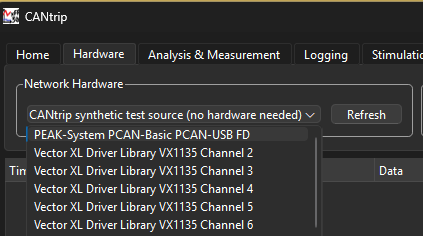
- Hardware - pick a channel, configure bus timing. See Hardware Tab.
- Analysis & Measurement - DBC import, Trace/Graph view. See Analysis & Measurement Tab.
- Logging - record traffic to a file, or replay a recording. See Logging Tab.
- Stimulation - configure and transmit CAN messages. See Stimulation Tab.
- About - version info and license. See About Tab.
Try it with no hardware at all
Every install of CANtrip always lists a "CANtrip synthetic test source (no hardware needed)" channel, regardless of what real CAN adapters are plugged in. It fakes traffic: fixed-ID frames, smoothly time-varying waveform signals (good for trying the Graph view), and periodic synthetic bus errors, so every feature described in this guide can be tried without owning a single CAN cable.
Pair it with test/sample.dbc
from the repository, a small DBC whose four message IDs (0x100, 0x200,
0x300, 0x7E8) deliberately match what the synthetic source transmits, so
imported signals decode immediately with zero hardware. Import it from the
Analysis & Measurement tab.
Next steps
Walk through the tabs in order: Home → Hardware → Analysis & Measurement → Logging → Stimulation. Once your setup is how you like it, save it as a Rune so you don't have to redo it next time.