Stimulation Tab
The Stimulation tab is CANtrip's message-transmission workspace, modeled on PEAK's PCAN-View: a split view with received frames on top and your configured transmit messages below, plus the controls to send them.
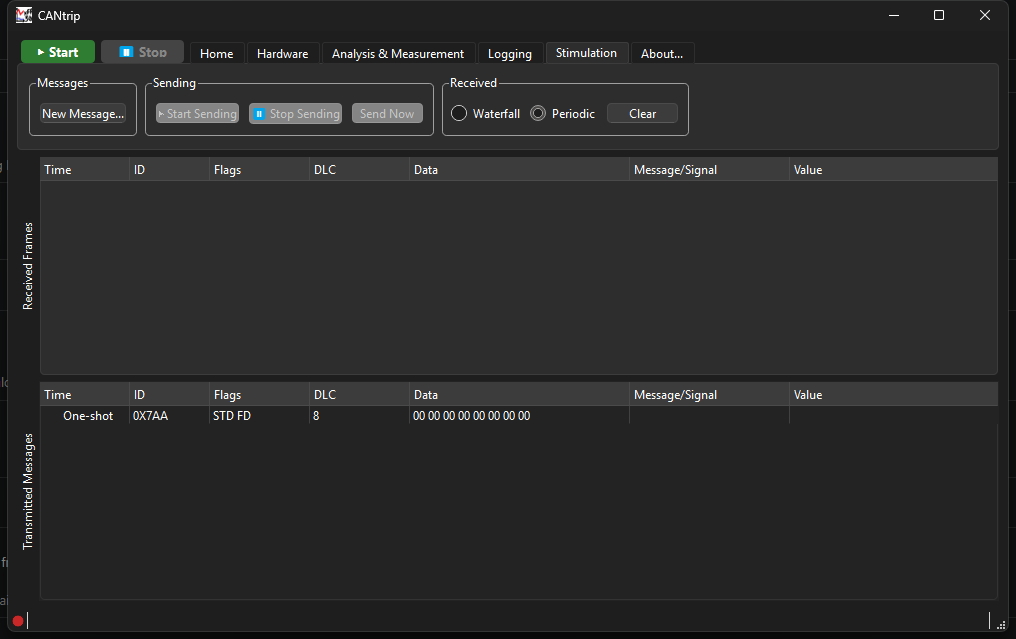
New Message
New Message... opens the New Transmit Message dialog:
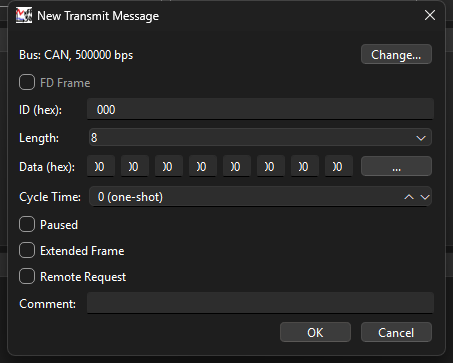
- Bus - shows the currently-configured bus (read-only here; Change... jumps to the Hardware tab to actually change it).
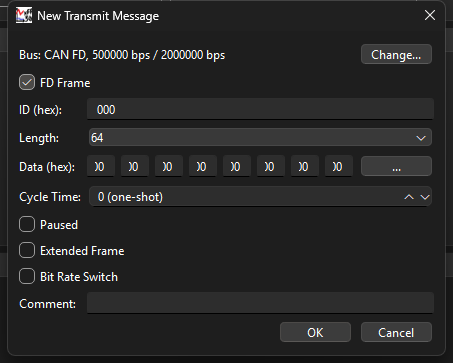
- FD Frame - only enabled if the configured bus is CAN FD-capable, and defaults to checked when it is. Toggling it swaps Remote Request for Bit Rate Switch (mutually relevant only to their respective frame types) and changes what Length offers.
- ID (hex) - the CAN identifier.
- Length -
0-8for classic frames; with FD Frame checked, the full FD length set:0, 1, 2, ..., 8, 12, 16, 20, 24, 32, 48, 64. - Data (hex) - the first 8 bytes inline; click ... for the full grid on longer FD frames (below).
- Cycle Time -
0sends the message once ("one-shot") whenever you press Send Now or Start Sending; anything higher repeats it on that interval (ms) while sending is active. - Paused - excludes this message from the cyclic scheduler without deleting it; Send Now still fires it regardless.
- Extended Frame / Remote Request (classic) or Bit Rate Switch (FD) - standard CAN flags.
- Comment - free text, shown in the message list.
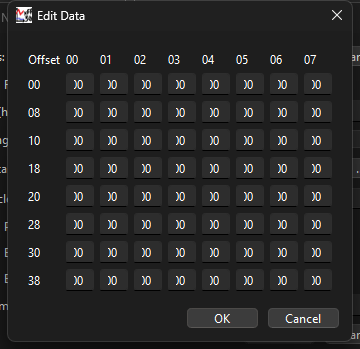
Edit Data
With FD Frame checked and a Length over 8, click ... to open a full hex grid instead of typing into 8 inline boxes. It resizes to match the selected length: 8 bytes per row, so Length 16 shows 2 rows, Length 32 shows 4, Length 64 shows the full 8.
Sending
- Start Sending - enables the cyclic scheduler: every non-paused message with a cycle time above 0 starts firing on its own interval. Only enabled while a capture is actually running.
- Stop Sending - pauses the scheduler (the port stays open; pressing Start Sending again resumes immediately, no reconnect delay).
- Send Now - fires the currently-selected message(s) once immediately, regardless of the scheduler or their individual Paused state.
The very first Start Sending or Send Now click in a capture session opens the actual transmit port, which can briefly fail if the capture hasn't fully finished starting up yet - see Architecture: Send Message Internals if you want the real reason why, and Troubleshooting if it's failing outright rather than just being briefly unavailable.
Message list
Right-click a message for Edit, Send Now, Copy, Cut, Paste, Delete, and Clear All (asks for confirmation - this deletes every configured message). Double-click a row to edit it directly.
Received pane
The top pane behaves like a smaller version of the main Trace view, with its own independent controls:
- Waterfall / Periodic toggle, same meaning as the Home tab's version but scoped to just this pane - defaults to Periodic specifically so a fast cyclic Start Sending doesn't flood this pane with a new row per send.
- Clear - clears just this pane, without touching your configured transmit messages.
Frames CANtrip itself transmits flow through the exact same pipeline real
received frames do (so they get decoded, logged, and graphed identically),
but they're marked: a TX tag in the Flags column and a light-blue
row color, so your own sends stay visually distinguishable from genuine bus
traffic in this pane and in the main Trace view alike.